WhatsApp chat widget generator

WhatsApp chat widget generator.A warmer welcome.

Build a floating WhatsApp button with a simple welcome panel. Match your website, preview the result and copy the code when you are ready.

  • Live working preview
  • Self-contained code
  • No email gate
Build your website button
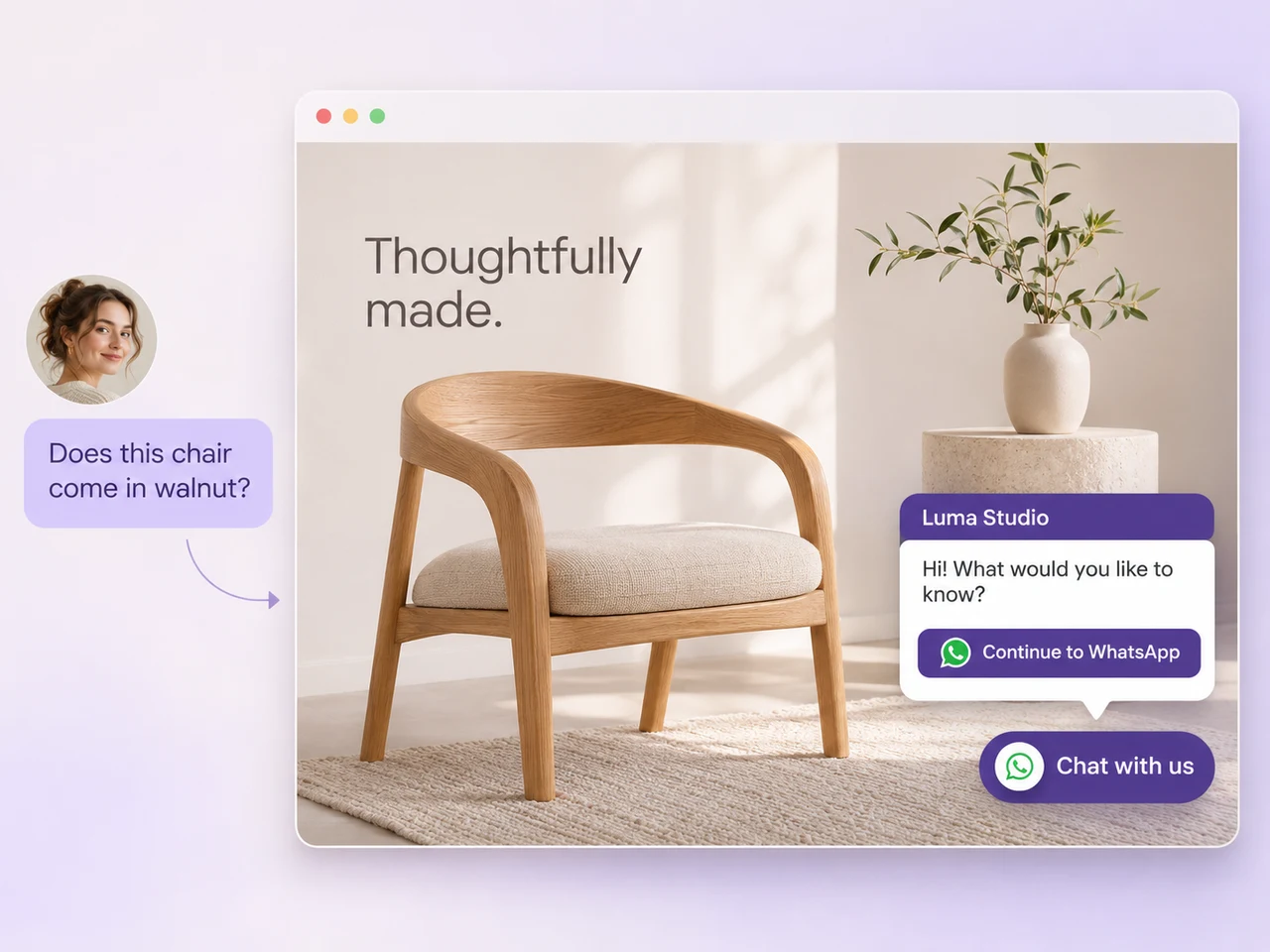
A furniture website uses a small WhatsApp welcome panel to help a visitor ask about a chair.

Make the button your own

Your contact details, a warm welcome and a button that fits.

01Contact details
02Welcome panel
03Customer’s opening message
04Appearance

WhatsApp icon

Default avatar

Live previewPreview only

Your widget, exactly as it will be exported. Open and close it to try the experience.

A considered welcome

Be easy to reach. Leave the page in focus.

A small contact button should help visitors take the next step without getting in their way.

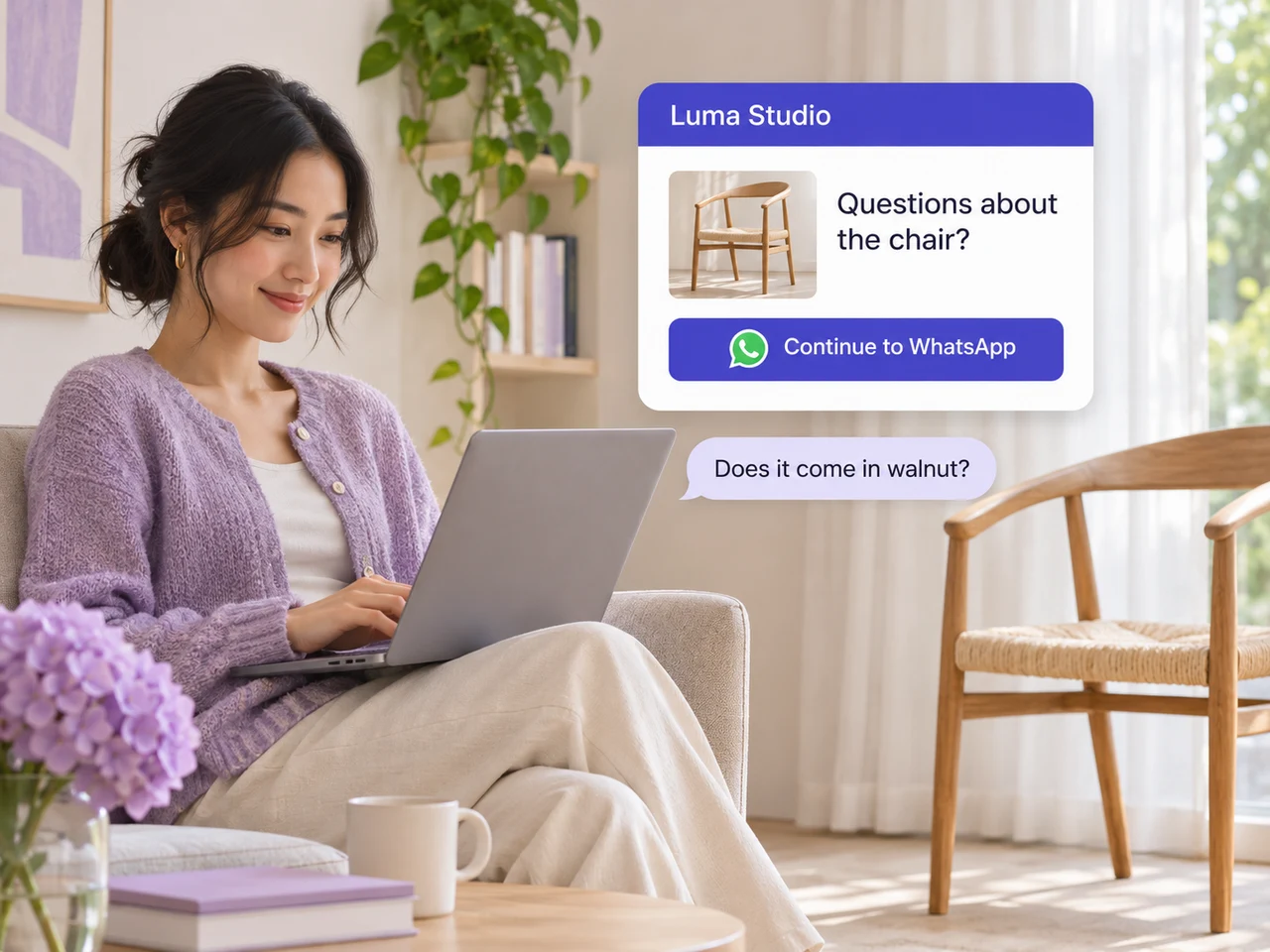
A customer uses a small website WhatsApp contact button to ask a question while browsing a product.

Your site, your introduction

Choose the team name, welcome text, colour and corner that fit the website. Use a labelled button when the action needs explaining or an icon-only style when space is limited. The panel stays closed on the installed site until someone chooses to open it.

A clear handoff to WhatsApp

Let the welcome panel introduce your team before the visitor continues to WhatsApp. The optional draft is editable and is never sent automatically. This makes the journey understandable: the panel is a website contact entry point, while the actual conversation takes place in WhatsApp.

Code you can keep

The export includes its own scoped styles and script, plus a small linked AxoDesk credit inside the open panel. There is no hosted widget subscription or email-capture step. Copy it into a supported page or download a working HTML demonstration. Update the installed copy when your details change.

Give the button a purpose

Welcome the question your page creates.

Try a message that fits the page and the team receiving the enquiry.

Help customers choose with confidence.

Offer a route to the team answering questions about products, materials and delivery. Keep the welcome specific enough to be useful without promising that a product is in stock. This static snippet does not attach a customer’s cart or browsing history; include only context you deliberately put in the draft.

  • Place the button where it does not cover cart controls.
  • Use a sales or product-support number that is monitored.
  • Share a product answer in the actual conversation.
Hi, does the oak chair come in walnut?

WhatsApp chat widget generator

Build a clear, trustworthy welcome

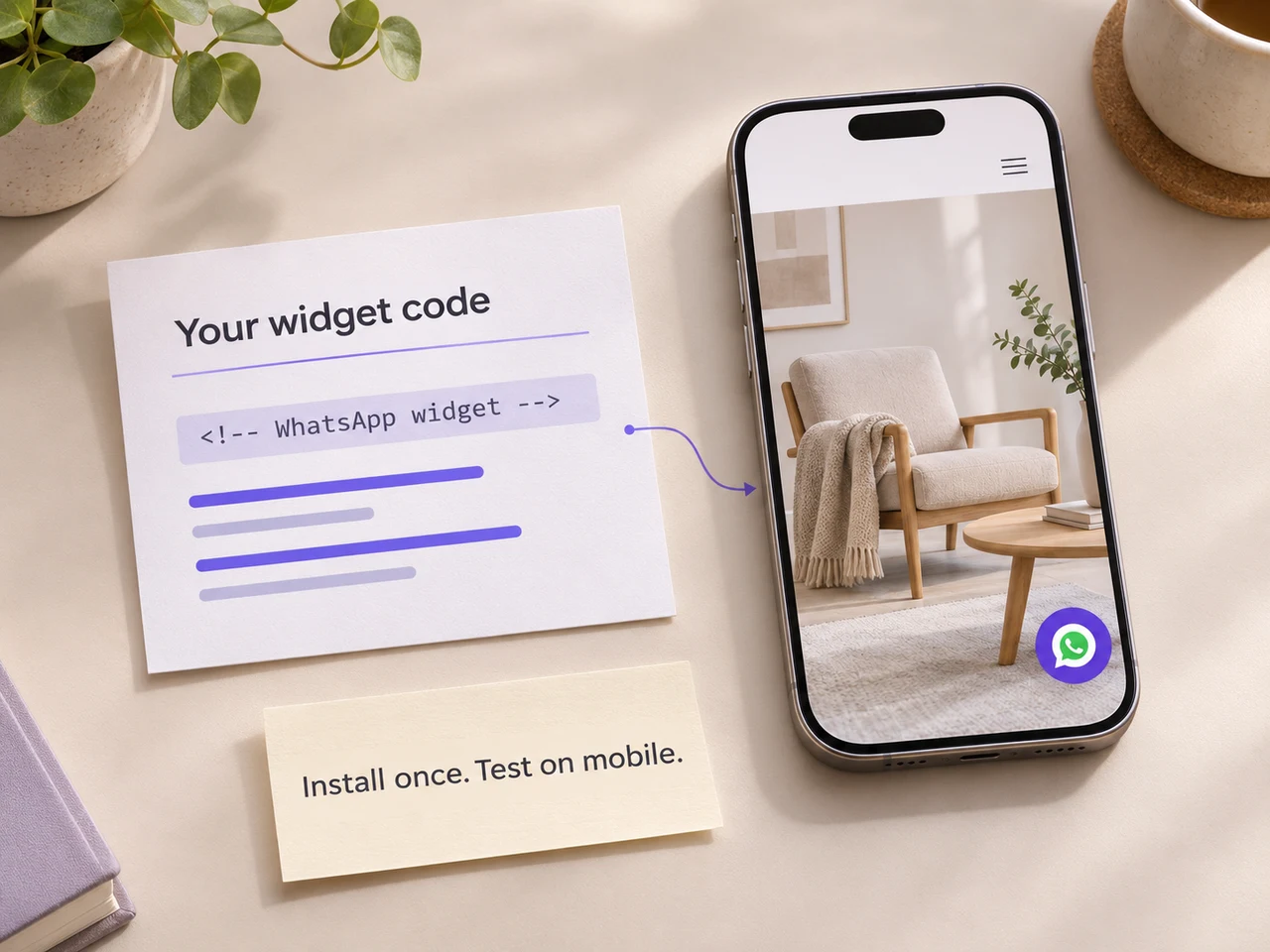
A code export connects to a website button on a phone with a reminder to install once and test on mobile.
  1. 01

    Choose the contact your team monitors

    Enter the full international WhatsApp number that should receive website enquiries. Match the business or team name to the destination customers will recognise when WhatsApp opens. If sales and support use different numbers, choose the one relevant to this website placement. A format check cannot verify account ownership, so test the destination before installing the snippet on a live page.

  2. 02

    Separate your welcome from their message

    The welcome message is what your website panel says to the visitor. The pre-filled message is the draft the visitor may send to you in WhatsApp. Write each from the correct perspective. For example, your panel could offer help choosing a product, while the visitor’s draft asks about product options. Keep both short enough to understand without scrolling through a long introduction.

  3. 03

    Set realistic availability text

    Use the subtitle for useful expectations such as your staffed hours or a response-time promise you can support. The generated widget does not know whether someone is online, whether a queue is busy or whether a message has been read. Avoid a permanent online claim when it is only static text. Customers should be able to understand when and how your team will respond.

  4. 04

    Preview the appearance and export

    Choose an icon-only or labelled button, set its corner and adjust the colour and spacing. Try the panel on both preview widths, including its close action. Add a public HTTPS logo image only if you want to load that image on visitors’ pages; otherwise choose one of the default avatars. Generate the snippet after your final changes, then copy it or download the working HTML demonstration.

Choose the right entry point

A button, a panel or a wider workspace?

Start with the experience your visitors need and keep its capabilities clear.

OptionWhat visitors getWhere it fits
Simple chat linkA direct tap into the selected WhatsApp conversation.A contact-page action, product link, signature or social profile.
Compact buttonA floating WhatsApp icon with an accessible action name.A page with limited space and a recognisable WhatsApp contact route.
Labelled buttonA floating icon and a short explanatory label.A page where visitors benefit from a clear instruction before opening the panel.
Welcome panelYour introduction and an action that continues to WhatsApp.A brief explanation of the receiving team and realistic response expectations.
Shared inbox productA separate team environment for the conversations that follow.Teams needing ownership, coordinated replies or workflows beyond a free website button.

Ready to add to your site

Keep the welcome helpful and unobtrusive.

Use two different voices

Your welcome speaks to the visitor; the draft speaks from the visitor to your team. Read both in that order. A friendly question is more useful than a long script, and the wording should not imply someone has already bought or booked.

Match expectations to staffing

The availability subtitle is static text, not an online detector. State hours or a response promise your team can keep. Check the receiving account before publishing so visitors do not reach a number nobody monitors.

Give other controls room

Check cart actions, cookie notices, mobile navigation and existing chat launchers. Change the corner or edge spacing when needed. Test after the page settles, since theme elements can move as banners and other components load.

Use a supported installation area

The snippet needs its HTML, styles and opening/closing script. Some editors strip scripts or block inline code. Use the site’s supported custom-code method and review its security policy with the maintainer rather than weakening protections indiscriminately.

Preview before publishing

Try both widths, keyboard activation and the close action. A custom HTTPS logo URL should load as an image, not a sharing or login page. Leave it blank to use your selected default avatar. All logos stay in a fixed round frame. Test the installed site as well as this builder.

Keep the installed copy current

The export is not a hosted configuration. Changes here do not remotely update a previous installation. Generate a new snippet, replace the old copy once, and note its location so the site maintainer can find it after a theme change.

Check the published result

The button appears but the panel does not open

Check that the script was preserved when the code was saved. A CMS may strip scripts, and a site’s security policy may block an inline script. Check for duplicate widget installations too: this snippet is intended to appear once on each page. Use the downloaded demonstration to compare the working behaviour with your published page, then ask your developer to adapt the integration to the site’s supported code-loading method.

The logo is missing or the widget overlaps another control

For an image, confirm the HTTPS URL opens as a public image rather than a login page or file-sharing preview. Remove the URL to use your selected default avatar. Every logo stays inside the same round frame. For an overlap, change the corner or edge spacing and test with mobile banners open. Theme elements can move after loading, so verify the settled page.

Changes in the generator do not update my website

The installed code is a copy, not a hosted configuration. Generate a new snippet after changing the number, text or appearance, replace the old installation and clear any relevant publishing cache. Keep a note of where you installed it so the site maintainer can find it later. Editing this page does not remotely change a widget you previously copied to another website.

Widget questions, answered.

Is the WhatsApp widget generator free?

Yes. Generate and copy the widget without signup or an email address. The exported button includes a small Powered by AxoDesk credit linking to our website. There is no hosted widget subscription attached to this export. Website hosting, your software agreement and any WhatsApp Business Platform usage remain separate.

Can visitors send messages inside my website?

No. The panel introduces your team and opens a WhatsApp click-to-chat link. The actual message is sent in WhatsApp after the visitor reviews it. If you need a website inbox, chat history or automated replies within the site, evaluate a dedicated chat product rather than treating this button as one.

Does the snippet track visitors or collect email addresses?

The generated snippet contains no AxoDesk analytics script or lead-capture form. It loads a logo only if you supply its URL, and it opens WhatsApp when the visitor chooses the chat action. Your website and any external services you configure can have their own data practices.

Can I use it with a WhatsApp Business account?

You can point the widget at a working WhatsApp number, including one used for business. Creating the button does not connect an API account, complete Meta onboarding or verify a business. Test the destination and ensure the team responsible for that account is ready to handle the enquiries.
When the conversations need a team.

Explore AxoDesk’s shared inbox, customer context and workflows when a simple entry point becomes a wider customer conversation.

Explore the team inboxTalk to sales