Appointment booking

Appointment bookingfrom chat to calendar.

Share a scheduling link while the customer is ready to meet. Keep the booking details, reminders, and follow-up connected to the conversation and the teammate handling it.

Explore the booking flow
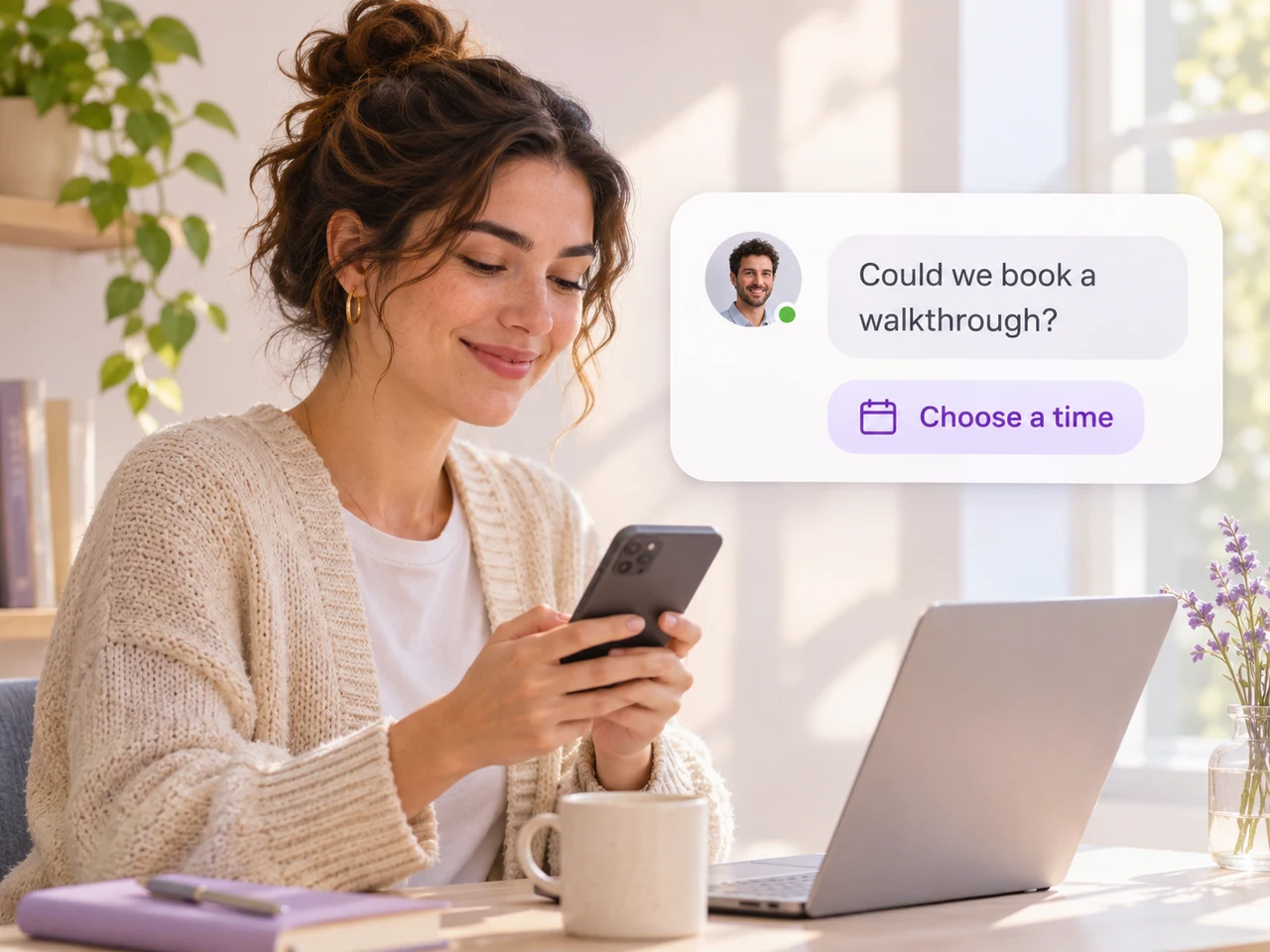
A customer asks to book a walkthrough and receives a scheduling link beside a professional at a desk.
  • Share the right scheduling link
  • Build reminders around the booking
  • Keep a teammate responsible for replies

From the enquiry to the appointment

Keep the next step close to the conversation.

Give customers a way to book, help them prepare for the appointment, and keep changes visible to your team.

Share a booking link

Give an interested customer a time to choose.

Match the booking link to the customer's request, whether it is a first sales call, a consultation, or a service appointment. Let the scheduling tool handle available times while your team stays in the conversation.

  • Choose the appropriate event type and host.
  • Keep the booking reference with the enquiry.
  • Make the next step clear before sharing the link.
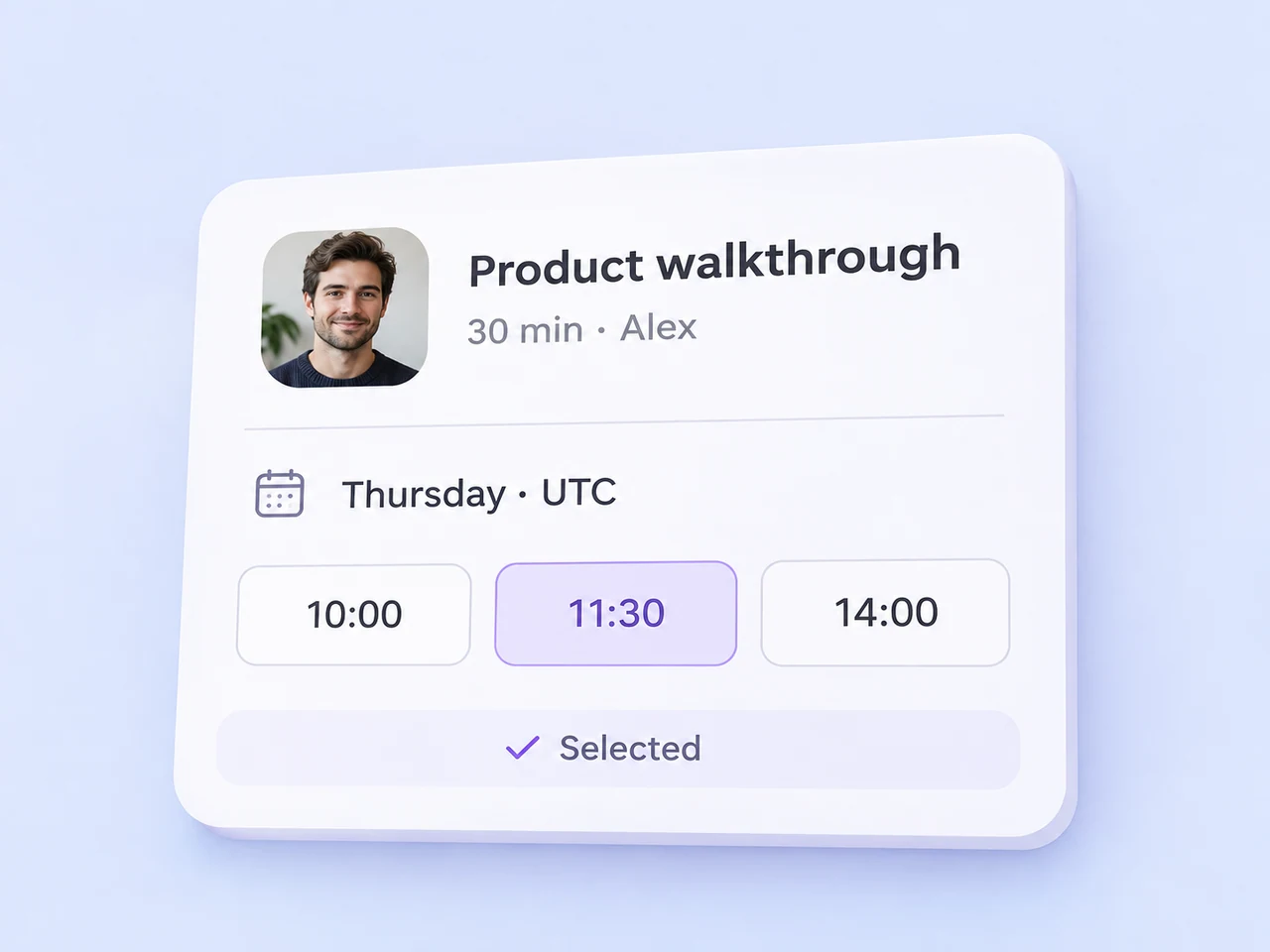
A product walkthrough schedule offers three Thursday times in UTC with 11:30 selected.

Prepare for the meeting

Send the useful details before the appointment.

Build a reminder around the meeting time, location or joining link, and the customer's channel. Give the customer a way to ask a question if something changes.

  • Use the current booking details in the message.
  • Choose the reminder timing for your workflow.
  • Send replies to the teammate handling the enquiry.
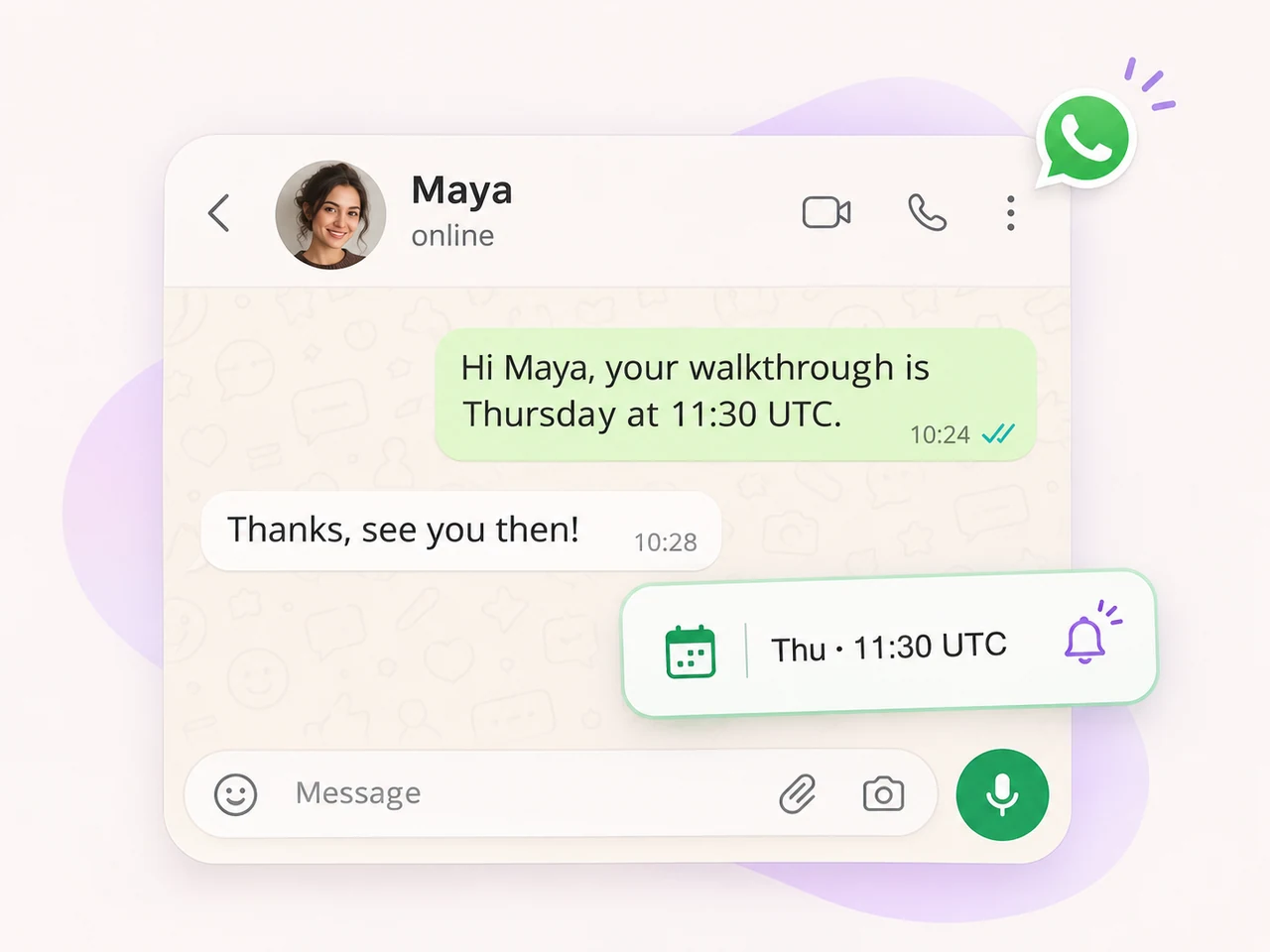
A WhatsApp reminder shares the walkthrough time with Maya, who replies to acknowledge it.

When plans change

Keep the updated appointment in view.

Help customers reach the rescheduling or cancellation process and keep the conversation owner informed. Check the details used by pending reminders when an appointment changes.

  • Use your scheduling tool to confirm a new slot.
  • Keep the time and timezone together.
  • Give the next teammate the latest context.
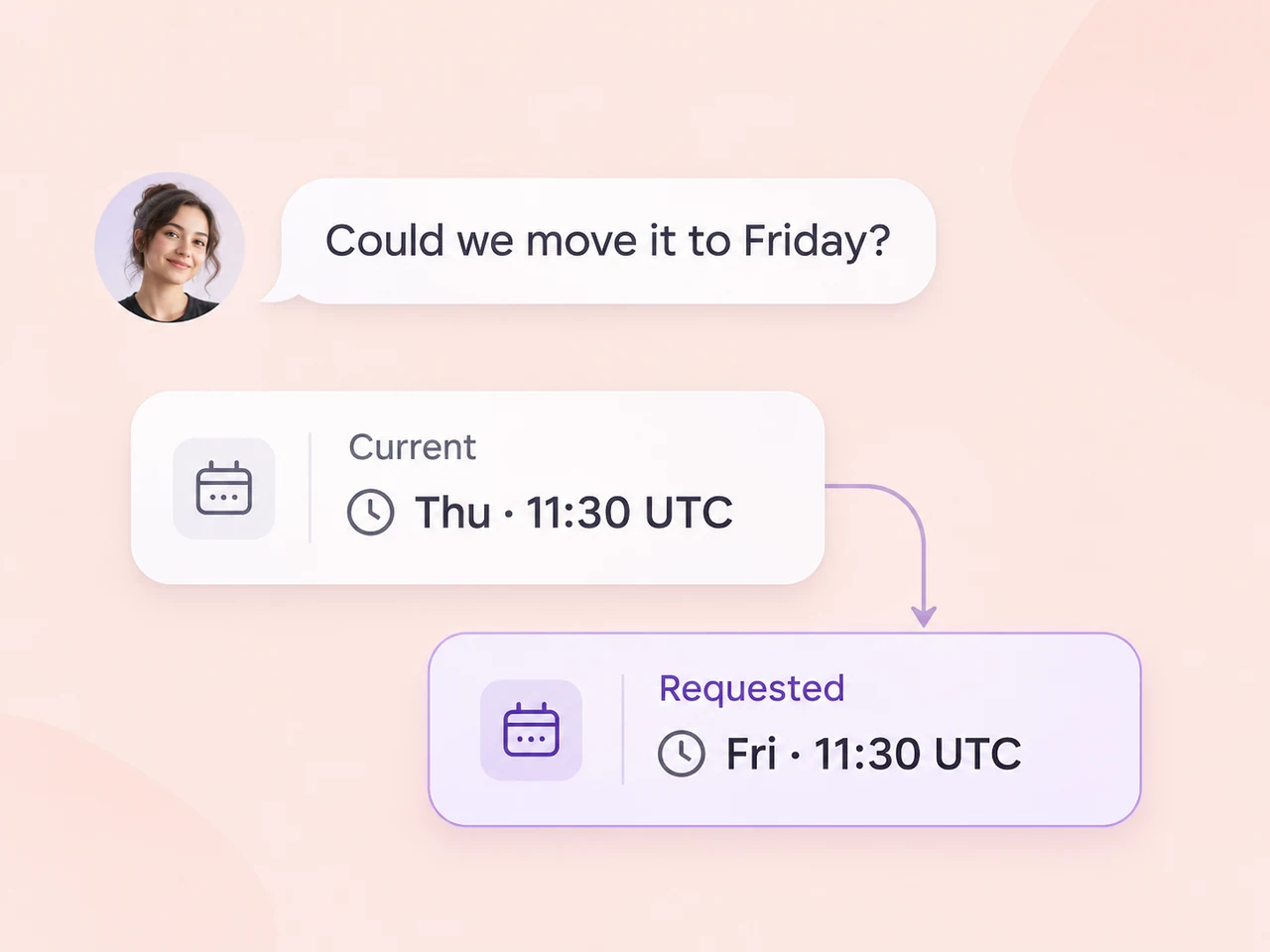
A customer requests Friday instead of Thursday; calendar slips distinguish the current and requested times.

Choose your scheduling tool

Bring the booking into your team's workflow.

Use the calendar or scheduling service that fits your appointments. Decide how links, event details, and changes reach the people handling the conversation.

Calendly

Share the event link that fits the enquiry and help the customer choose a meeting time.

Explore Calendly

Cal.com

Match booking requests with the right event type, host, and appointment duration.

Explore Cal.com

Google Calendar

Coordinate meeting plans, calendar ownership, and the details your team needs for follow-up.

Explore Google Calendar

Start with one appointment type

Build a booking flow your team can follow.

Choose an enquiry your team handles regularly, then test the booking and the customer messages together.

  1. Prepare the event

    Set the appointment type, host, availability, duration, and timezone in your scheduling tool.

  2. Connect the conversation

    Share the relevant booking link and agree how the contact and appointment reference stay connected.

  3. Plan the messages

    Prepare the confirmation, reminder, and change messages. Set the workflow timing and the owner for replies.

  4. Test the full path

    Try a new booking, a time change, and a cancellation. Check the details used by your team's follow-up.

Guidance for your booking setup

Answer the first questions

Use business knowledge to help customers with initial questions before they choose the next step.

Find the right teammate

Route the enquiry to the team responsible for the appointment and the next customer reply.

Keep the history together

Give your team the customer messages and handoff notes when someone else takes over.

Questions about appointment booking

How does appointment booking work with AxoDesk?

Share the right scheduling link during a customer conversation, using an event type that fits the enquiry. The customer chooses a time through your scheduling tool. Keep the booking reference, appointment details, and conversation owner clear in your team's process, then configure confirmations and follow-up around the information available to your workflow.

Which scheduling tools are in the integration catalogue?

AxoDesk's catalogue includes Calendly, Cal.com, and Google Calendar. Choose the scheduling tool your team uses, decide which event types or calendars belong to each appointment, and test the path from a shared conversation to the booking. Review how event details and changes should reach the teammate handling the enquiry.

Where do the available appointment times come from?

Your scheduling tool manages the available times, event duration, host availability, and booking rules. AxoDesk gives your team a place to share the appropriate link and continue the customer conversation. Check the event type, timezone, and host settings in the scheduling tool before using a link in your booking workflow.

Can we send appointment reminders?

Build the reminder around the booking details, the customer's channel, and the time you want the message to be sent. Configure how appointment information reaches the workflow and prepare the message format it needs. Test the reminder for new, changed, and cancelled appointments so the customer receives the relevant details.

How should we handle a reschedule or cancellation?

Use the change or cancellation process provided by your scheduling tool and keep a responsible teammate available for questions in the conversation. Once the appointment changes, update the details your team uses for follow-up and check any pending reminders. Keep the new time, timezone, and next action clear for the customer and the conversation owner.

Can AI help with an appointment enquiry?

An AI agent can answer initial questions using your business knowledge and collect useful details about the customer's request. Define when the conversation should move to a teammate, especially for requests outside the agent's scope. Your team can then share the relevant booking link and continue with the conversation history available.

Make the next appointment part of the conversation.

Bring your customer channels, scheduling links, and team follow-up into a booking process that gives everyone a clear next step.