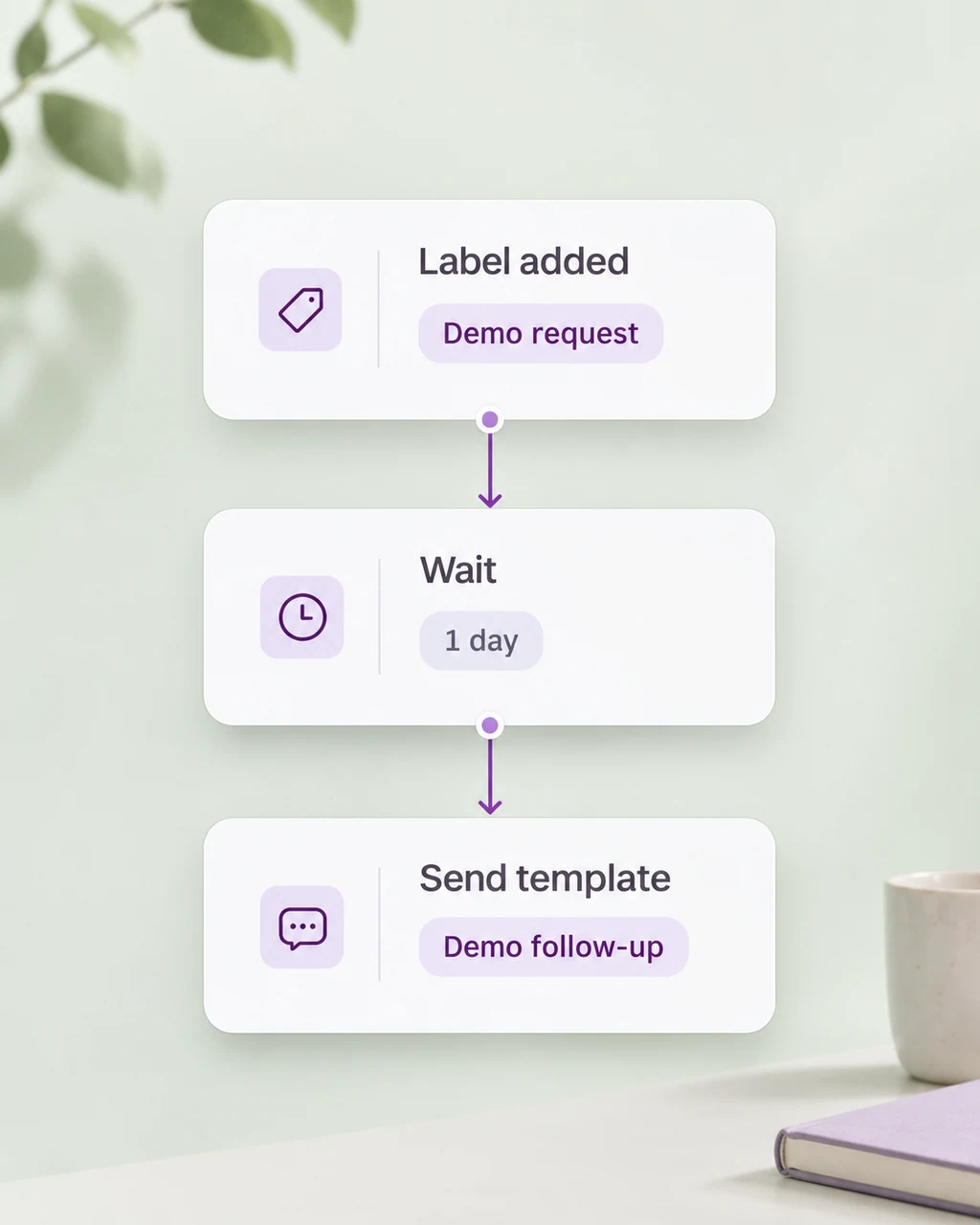
Start with a useful trigger
Choose the event that should begin the follow-up, then add conditions that fit the enquiry. Connect a wait, a message, or an assignment in a visual workflow.
Explore workflow setupAutomated follow-ups
Give the next reply a time, a purpose, and a responsible teammate. Connect repeatable workflow steps with the customer details your team needs to continue the conversation.
Explore the follow-up workflow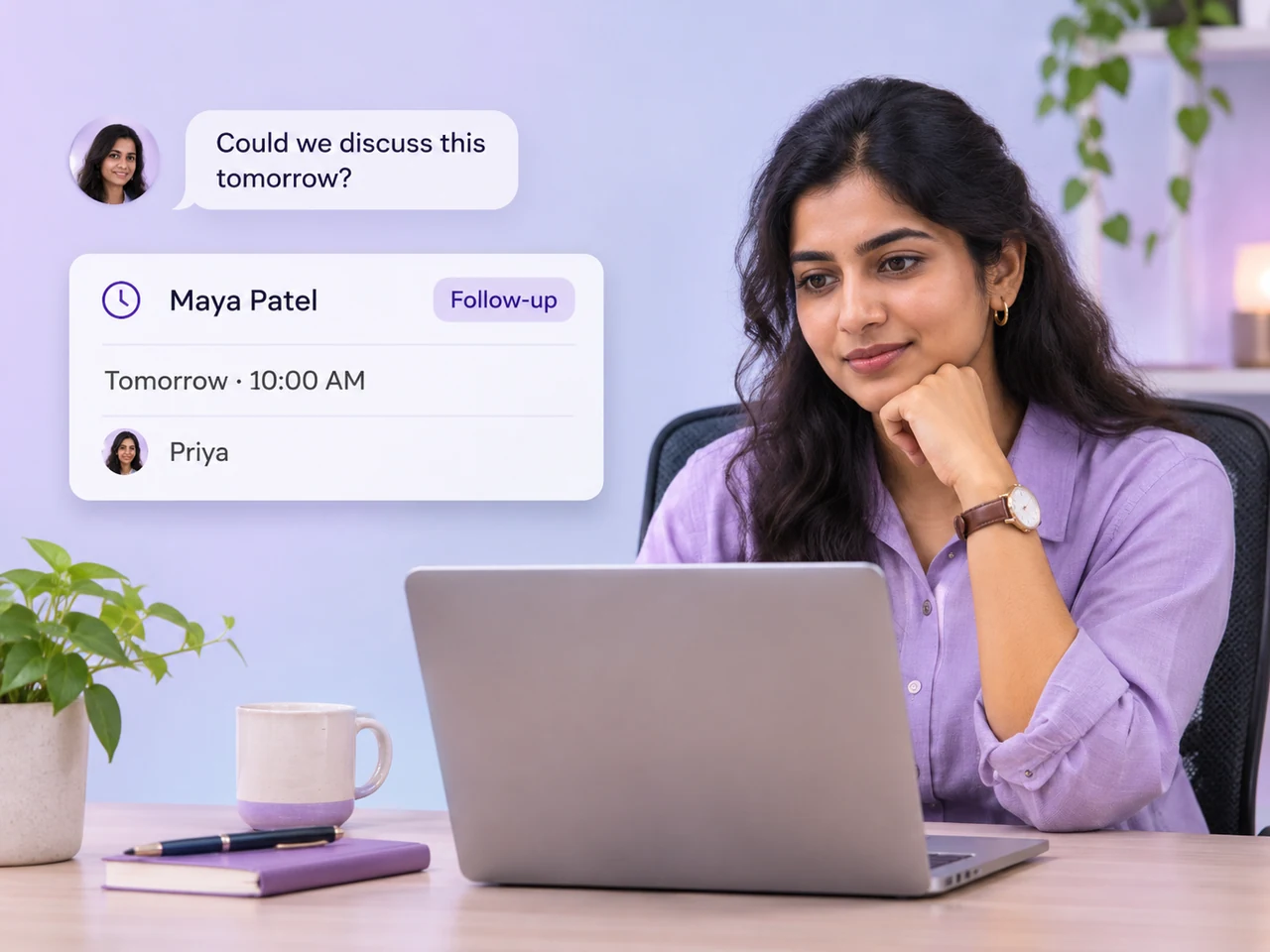
The work between replies
Some enquiries need a message. Others need more time or a different teammate. Build the follow-up around what the customer needs next.
Choose the event that should begin the follow-up, then add conditions that fit the enquiry. Connect a wait, a message, or an assignment in a visual workflow.
Explore workflow setup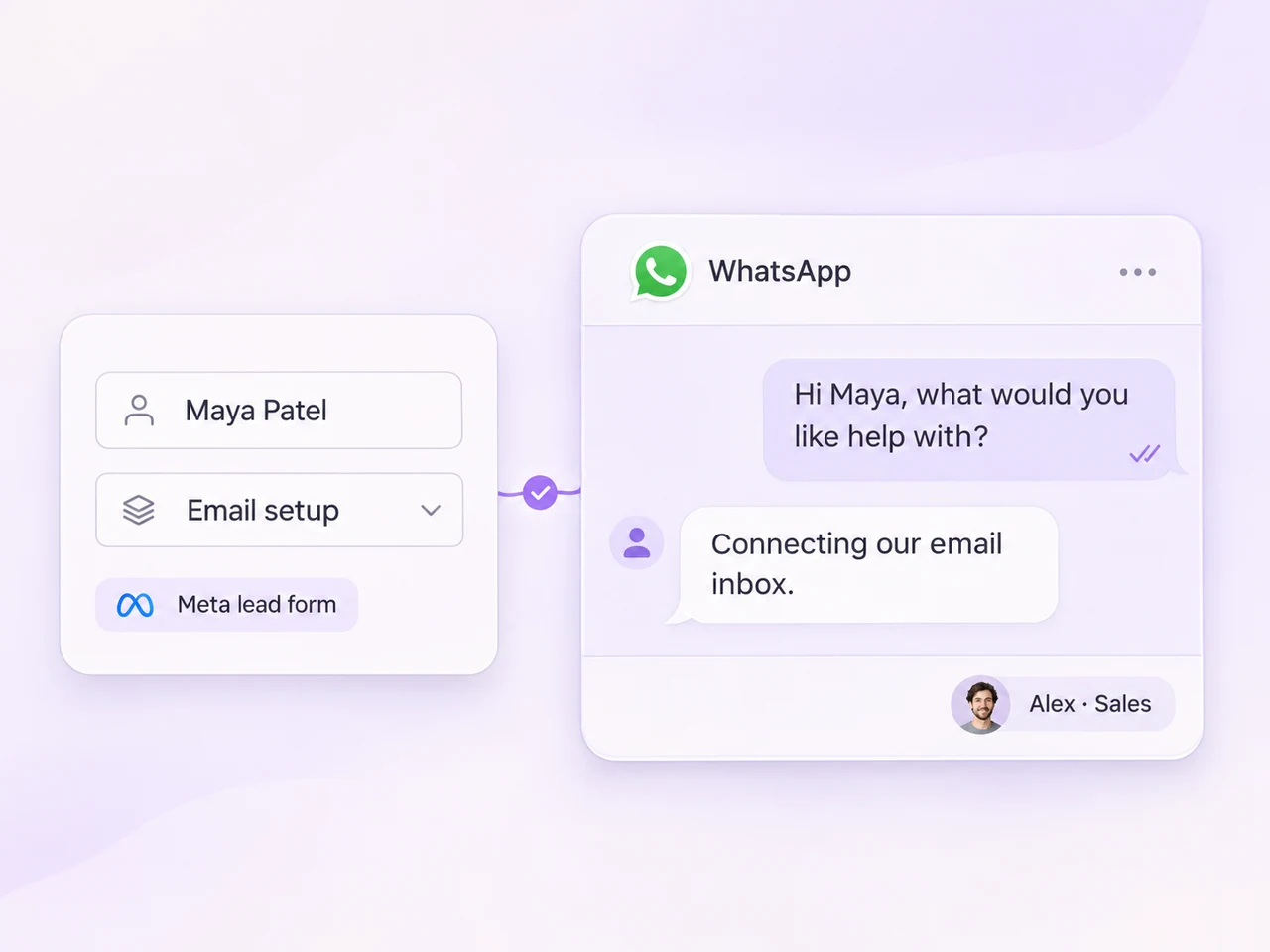
Use the details already collected to make the next message relevant. Prepare the required message or WhatsApp template and review its variables before the workflow runs.
Explore WhatsApp templates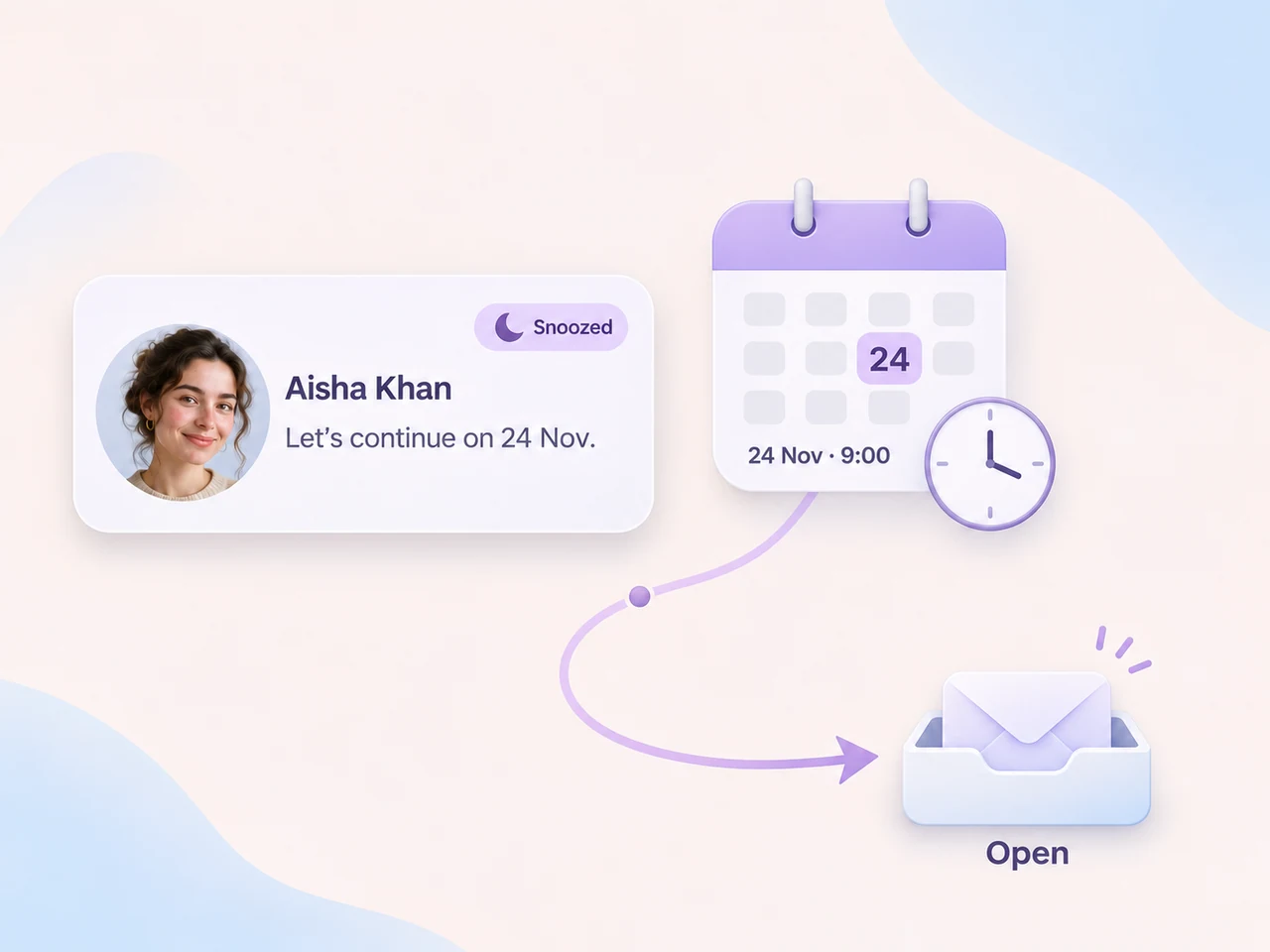
Snooze an enquiry until a chosen time while the customer considers a decision or your team gathers information. The conversation returns to Open with its history available.
Explore conversation snoozing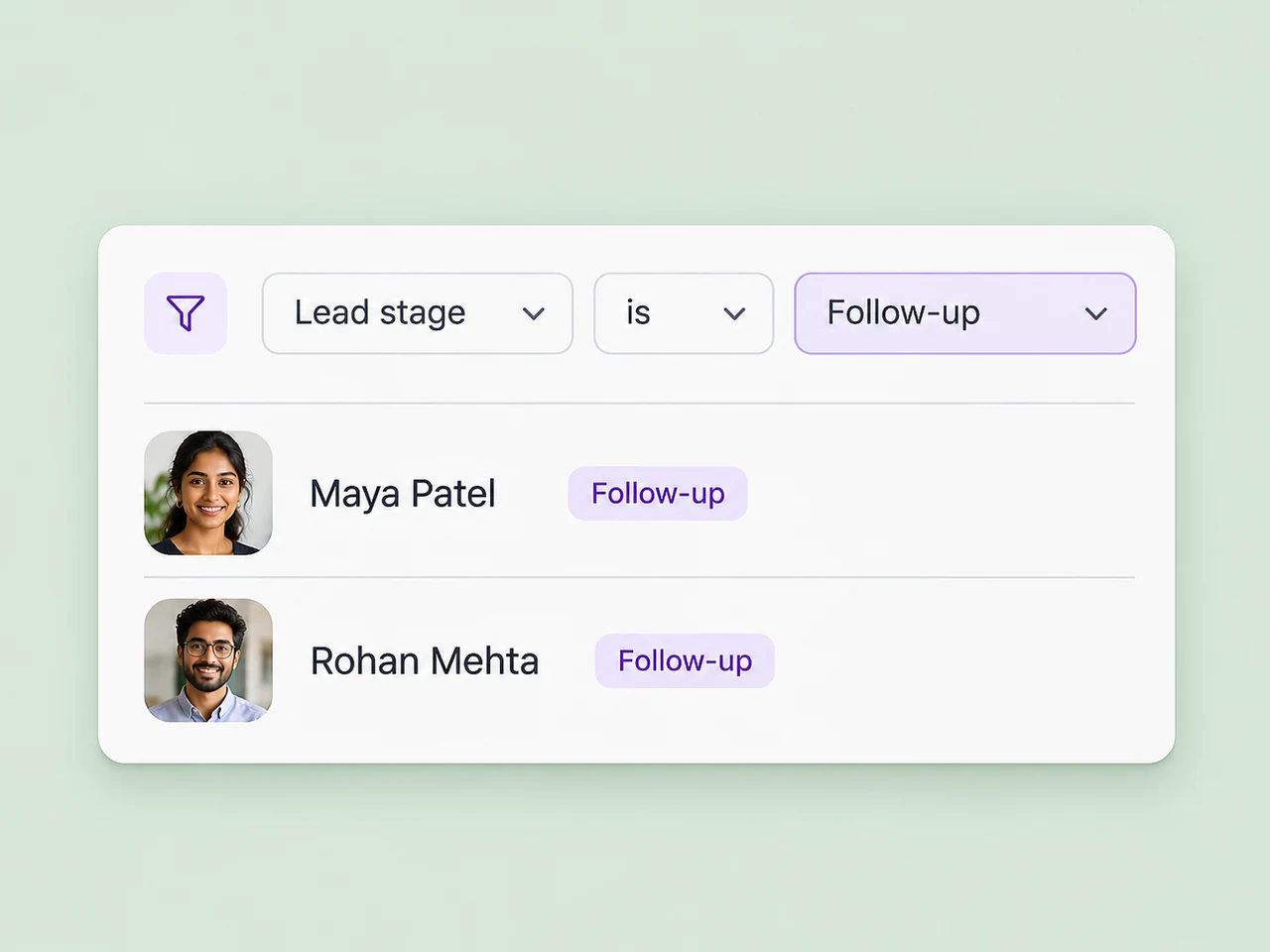
Use lead-stage values, labels, and contact criteria to return to the right group of enquiries. Keep your team's review focused on the work that needs a next step.
Explore lead status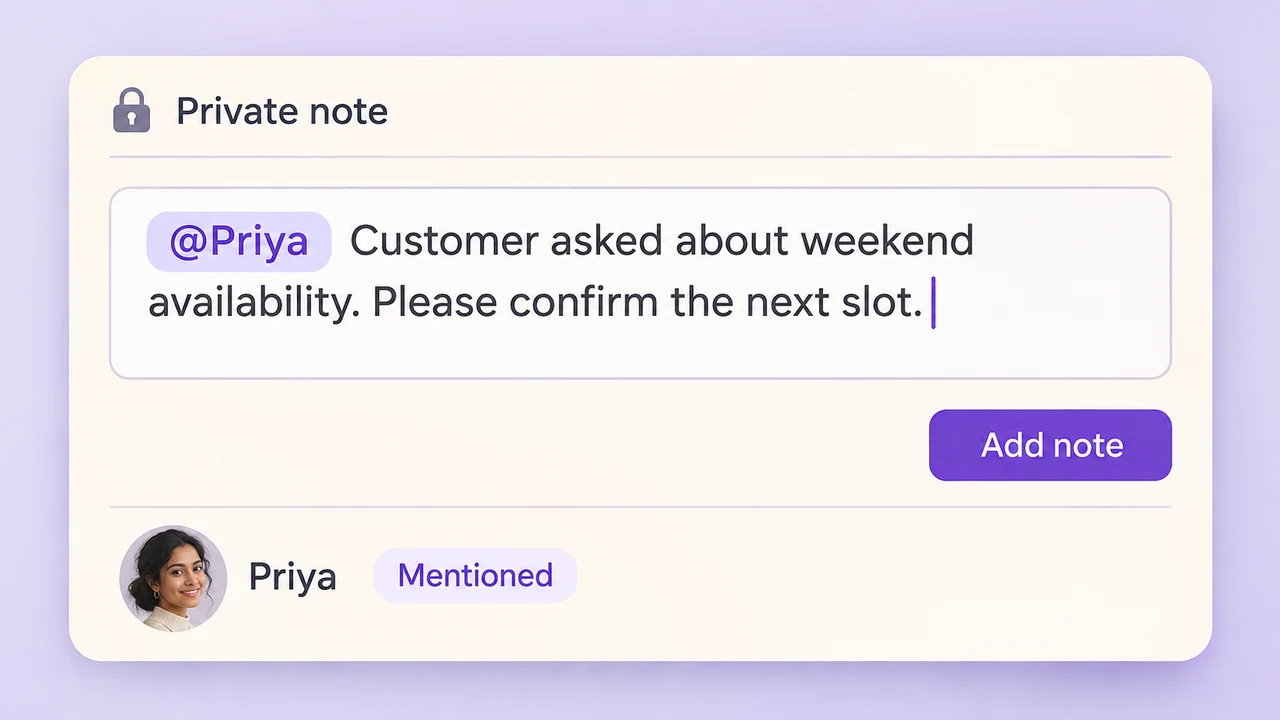
Assign the enquiry to the teammate or team responsible for moving it forward. Leave a private note with the customer's request and the action that needs attention.
Explore conversation handoffs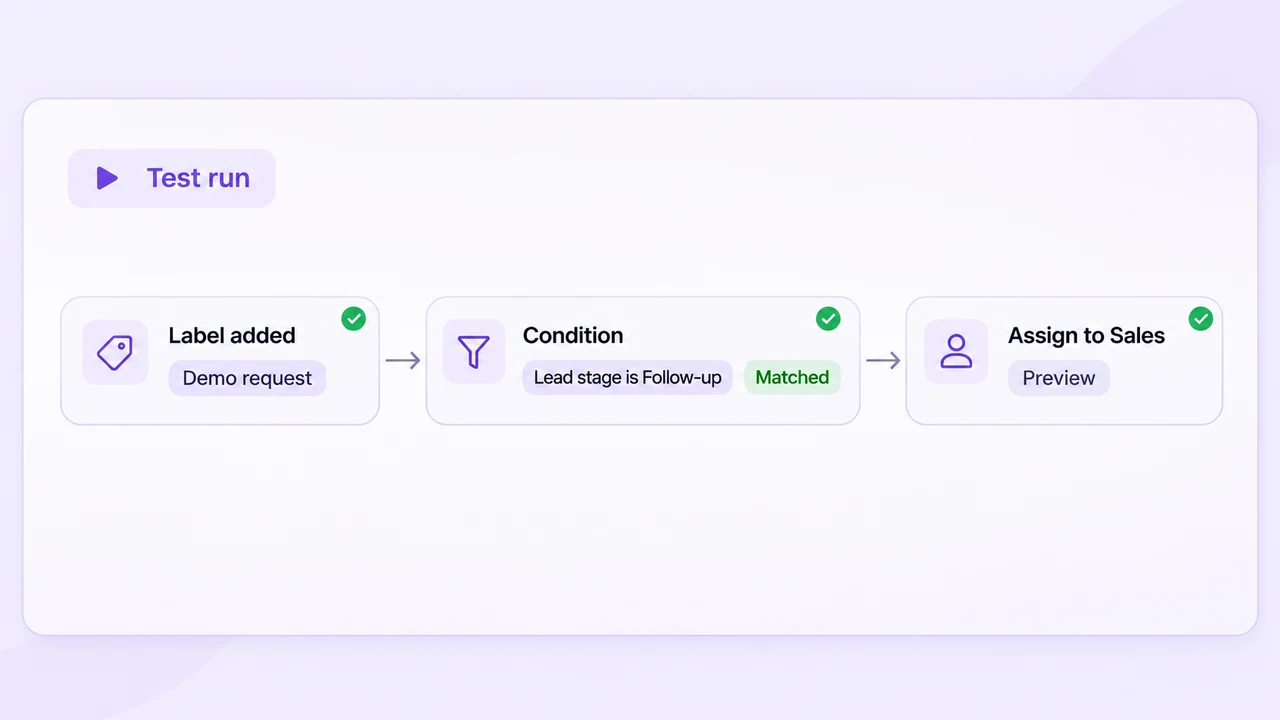
Test returning customers, repeated triggers, new replies, and lead-stage changes. Decide which actions still apply so the workflow follows the current enquiry.
Explore workflow testingPut the process in place
Build a small, understandable workflow, test it with realistic customer requests, and review the results with the people handling the replies.
Identify the conversation or contact event that should start the follow-up.
Scope the workflow to the relevant channel, labels, or customer details.
Choose the wait, message, contact update, or assignment the enquiry needs.
Simulate the trigger, inspect the actions, and review runs after activation.
Keep replies and customer history available to the people handling the enquiry.
Explore the team inboxGive the enquiry a clear stage as it moves toward a decision.
Explore lead stagesShare the scheduling link that fits when the customer is ready to meet.
Explore appointment bookingBuild a workflow around a conversation or contact event, then choose the conditions and actions that fit your process. Depending on your workspace setup, actions can include assignment, labels, messages, contact updates, waits, branches, and webhook requests. Start with one follow-up task and test the complete path before activating it.
Choose a trigger such as a new conversation, a received message, a new contact, a label being added, or a scheduled time. Use conditions to narrow the workflow to the right channel, request, or contact group. Decide what should happen if the event occurs again so the same enquiry does not receive an unintended sequence.
Yes. Snooze a conversation until a chosen time, such as later today, tomorrow, or a custom date. It returns to Open at the scheduled time. Keep an owner and a private note with the conversation so the teammate returning to it knows what needs to happen next.
Configure a message action around the customer details and the purpose of the follow-up. Choose an approved WhatsApp template when the message step requires one, and check its variables before testing. Keep the audience, timing, and subsequent customer replies in view as part of the workflow.
Give the incoming reply a clear route to the responsible teammate or team. Review the conversation history, update the lead stage when appropriate, and check which pending steps still make sense. Test replies and stage changes alongside your workflow conditions before using the sequence with customers.
Use the Test Workflow panel to simulate the trigger and review which conditions and actions match. Try a new enquiry, a returning customer, a reply during the wait, and a request that belongs to another team. After activation, review workflow runs and errors and refine the process when the team finds a gap.
Connect the trigger, timing, and teammate in AxoDesk so your follow-up can continue from the details already shared.