First-response time
Review the wait for the first reply. Look for periods or teams where new enquiries take longer to receive attention.
The start of the conversation
Track response times
Understand how quickly your team replies and how long conversations take to resolve. Use AxoDesk reports to review performance across channels, teams, and agents.
Explore the report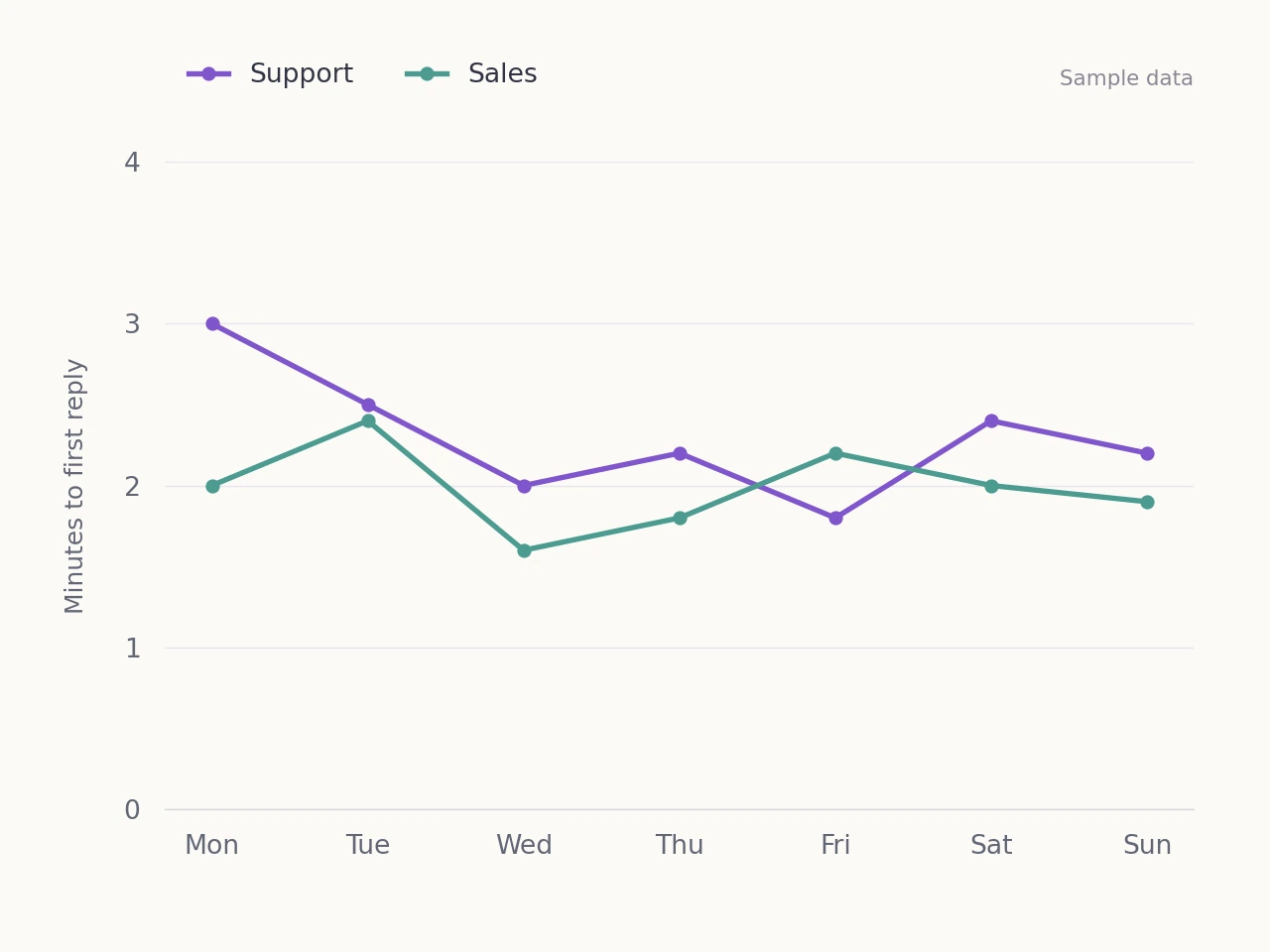
Know what you are reviewing
Use the right metric for the question you want to answer, and read it alongside the work your team is handling.
Review the wait for the first reply. Look for periods or teams where new enquiries take longer to receive attention.
The start of the conversation
Review how long conversations take to reach a resolution. Read the history to understand what the team needed to complete the request.
The path to an answer
Put the time metrics beside the amount of work. A change in enquiry volume or complexity can help explain a change in response times.
The workload behind the numbers
Read the report
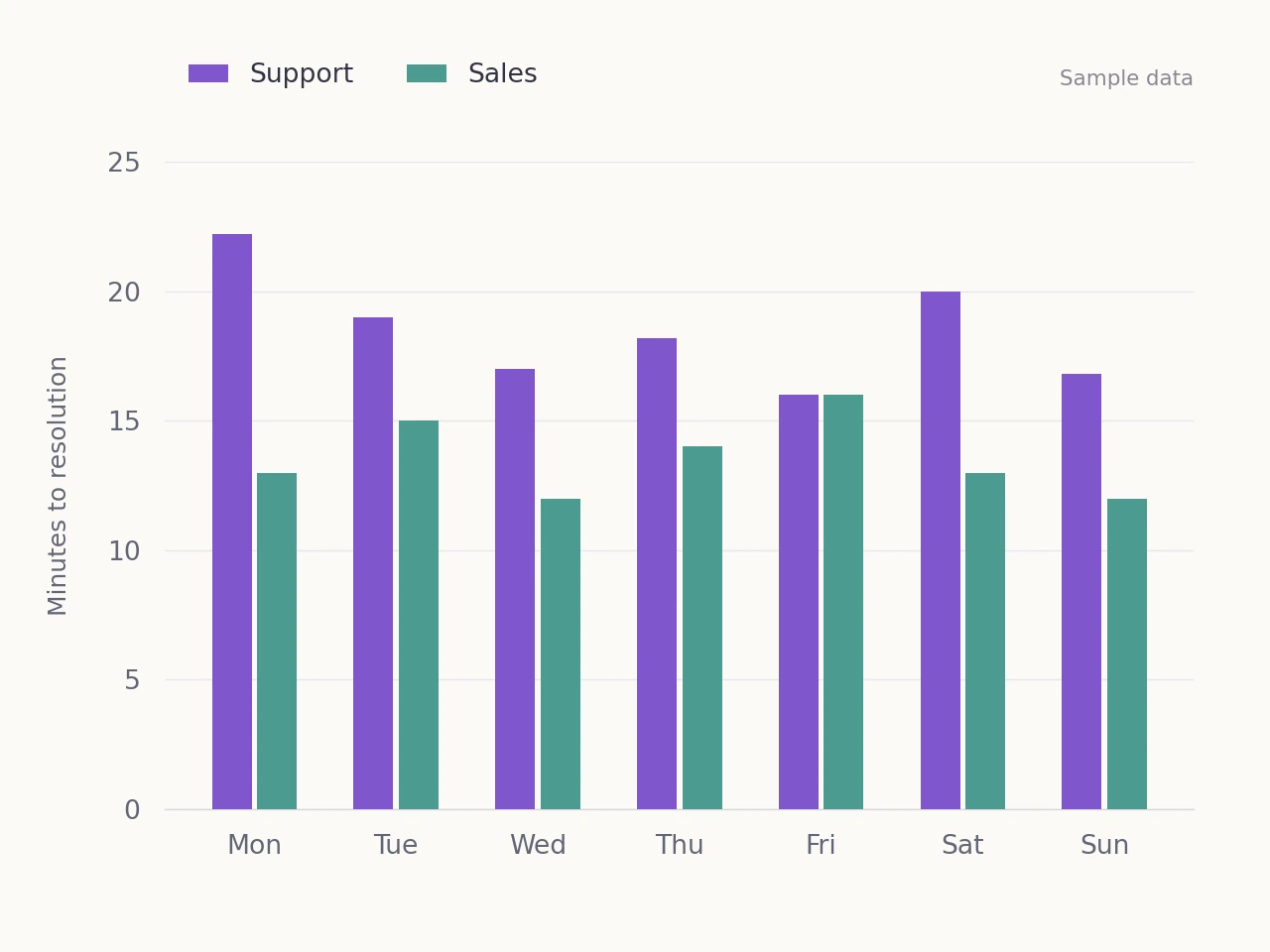
Compare daily resolution times for two teams. Read the figures alongside workload and the kinds of questions received.
Review the work behind the wait
Look at the figures, read the conversations, and agree what the team should change.
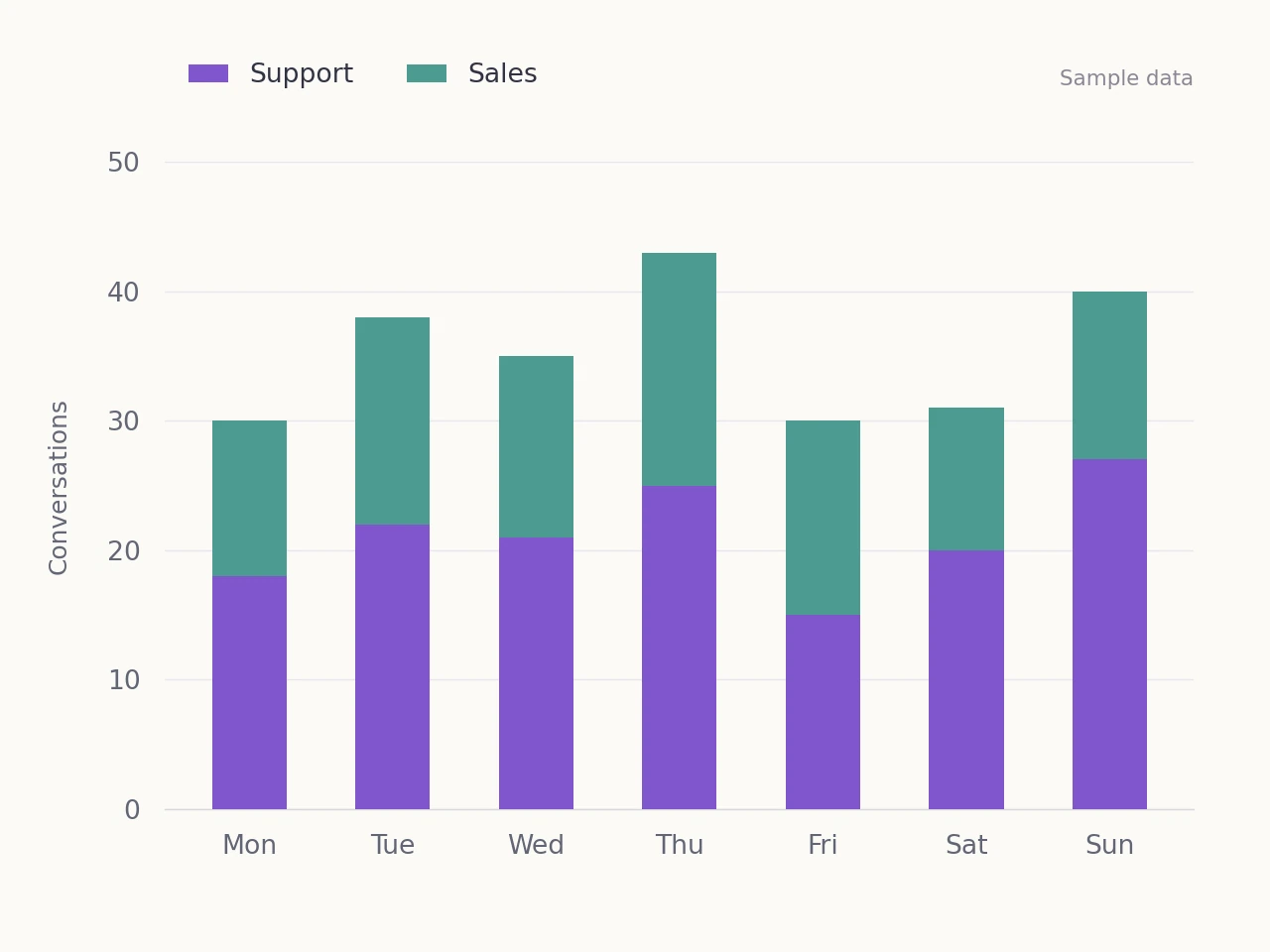
Use report filters to investigate one part of the workload. Compare the same date range and look at enquiry volume before drawing conclusions about speed.
Explore report filters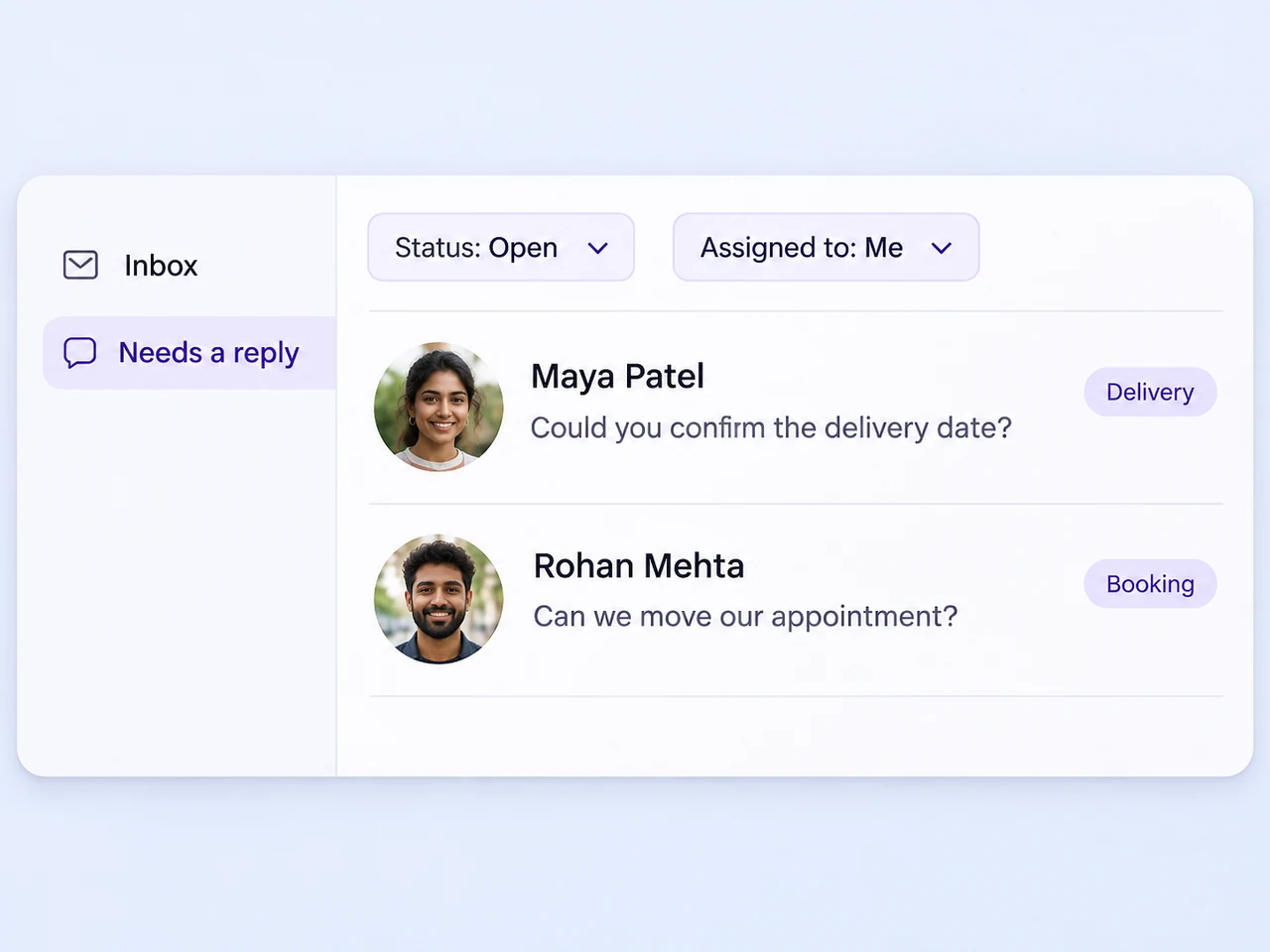
Check assignment when a conversation needs attention. Use inbox views and notifications to help the responsible teammates find the work they should handle.
Explore inbox views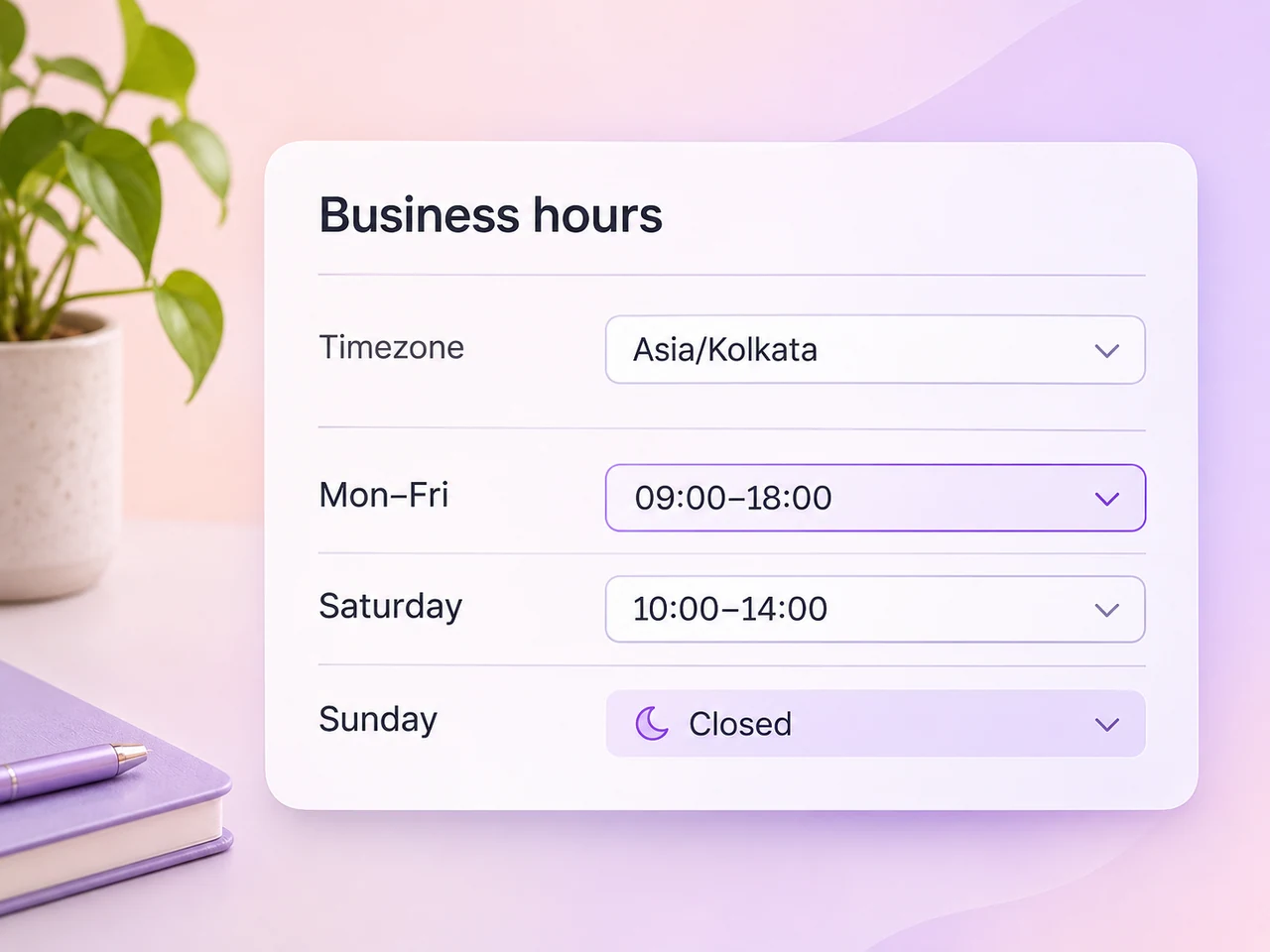
Set business hours and check the workspace timezone. Read each report's definition so the team understands what the time metrics include.
Explore working hours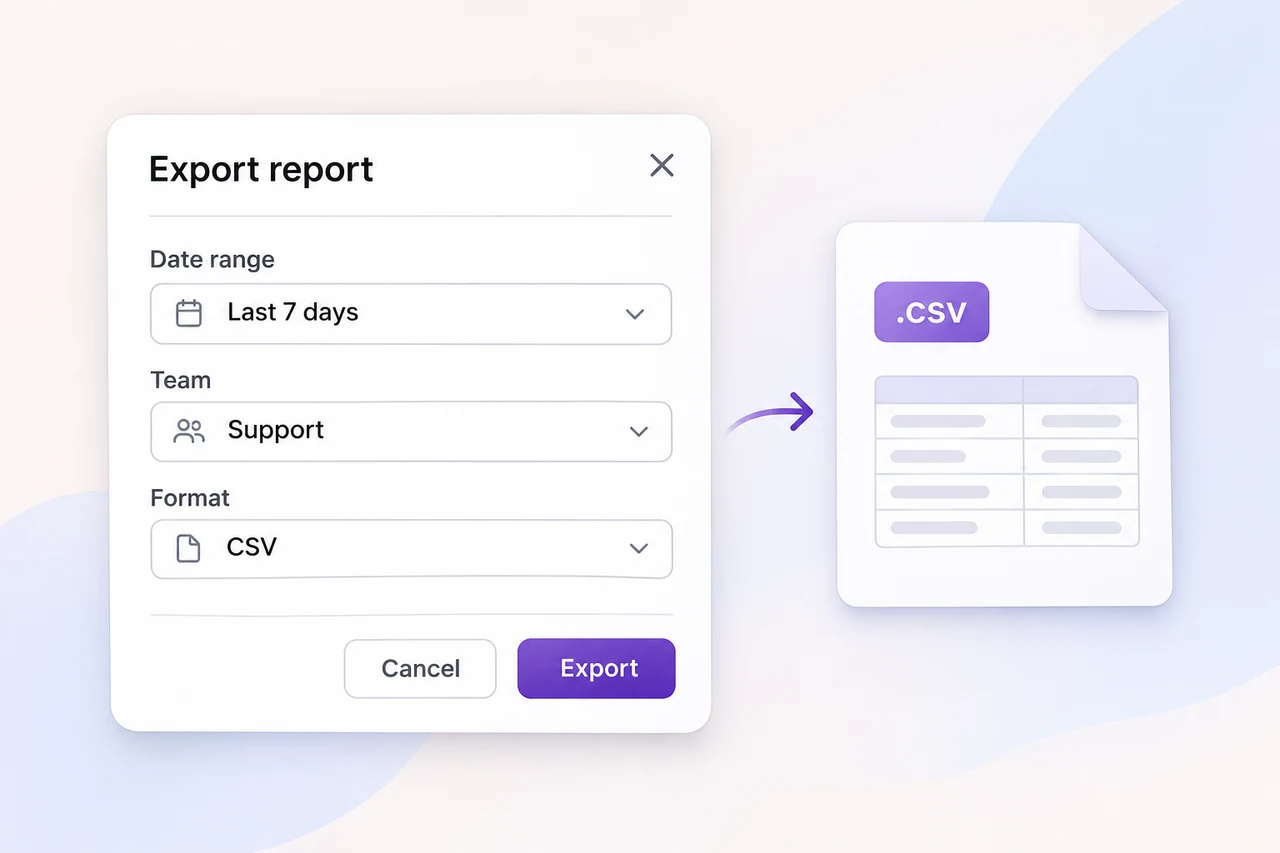
Export reports to CSV or schedule an email report. Bring the same reporting period and filters into your team discussion, then track the change you agreed to make.
Explore reporting and exportsBuild a repeatable review
Choose a manageable reporting routine and focus on a change the team can follow through.
Set the period, channels, and team you want to review. Keep those choices consistent when comparing results.
Review first-response time and resolution time alongside conversation volume and the kinds of questions received.
Look at assignment, the details collected, and any handoffs. Identify where the team needed information or a new owner.
Make one clear change to the workflow. Return to the same report after a comparable period and discuss what changed.
Bring customer conversations and their owners into one shared workspace.
Explore Team InboxKeep the useful context available when the next teammate takes over.
Explore conversation handoffGive customer questions an owner, an answer, and a clear resolution.
Explore customer assistanceReview how incoming enquiries reach the responsible team or agent.
Explore lead distributionFirst-response time helps you understand the wait for the first reply. Resolution time helps you review how long conversations take to reach a resolution. Read both alongside conversation volume and the type of request. A quick initial reply and a useful final answer are different parts of the customer experience.
AxoDesk reports include team and agent performance metrics such as conversations handled, average first-response time, average resolution time, and messages sent. Use the available channel, team, or agent filters to focus the review, and keep the reporting period consistent when comparing results.
Reports can be exported as CSV, and scheduled reports can be sent by email daily, weekly, or monthly. Choose a reporting period and the filters that match your review before exporting.
Check your workspace timezone and business-hours configuration before comparing results. Business-hours settings control away messages and SLA timers. Review the definition used by each report so you understand how its response and resolution metrics treat time outside working hours.
Start with the period, channel, or team where the wait appears. Review conversation volume, assignment, and the messages in the affected conversations. Then choose a specific change, such as clearer ownership, a better handoff note, or adjusted working hours, and review a comparable period after the change.
Use the conversation reports to review overall volume and channel breakdowns, then filter by channel, team, or agent to investigate a particular part of the workload. Keep the mix of enquiries in mind when comparing channels, because a short setup question and a complex support case may need different amounts of attention.
Bring conversation metrics and everyday inbox work together in AxoDesk.