Enquiries without context
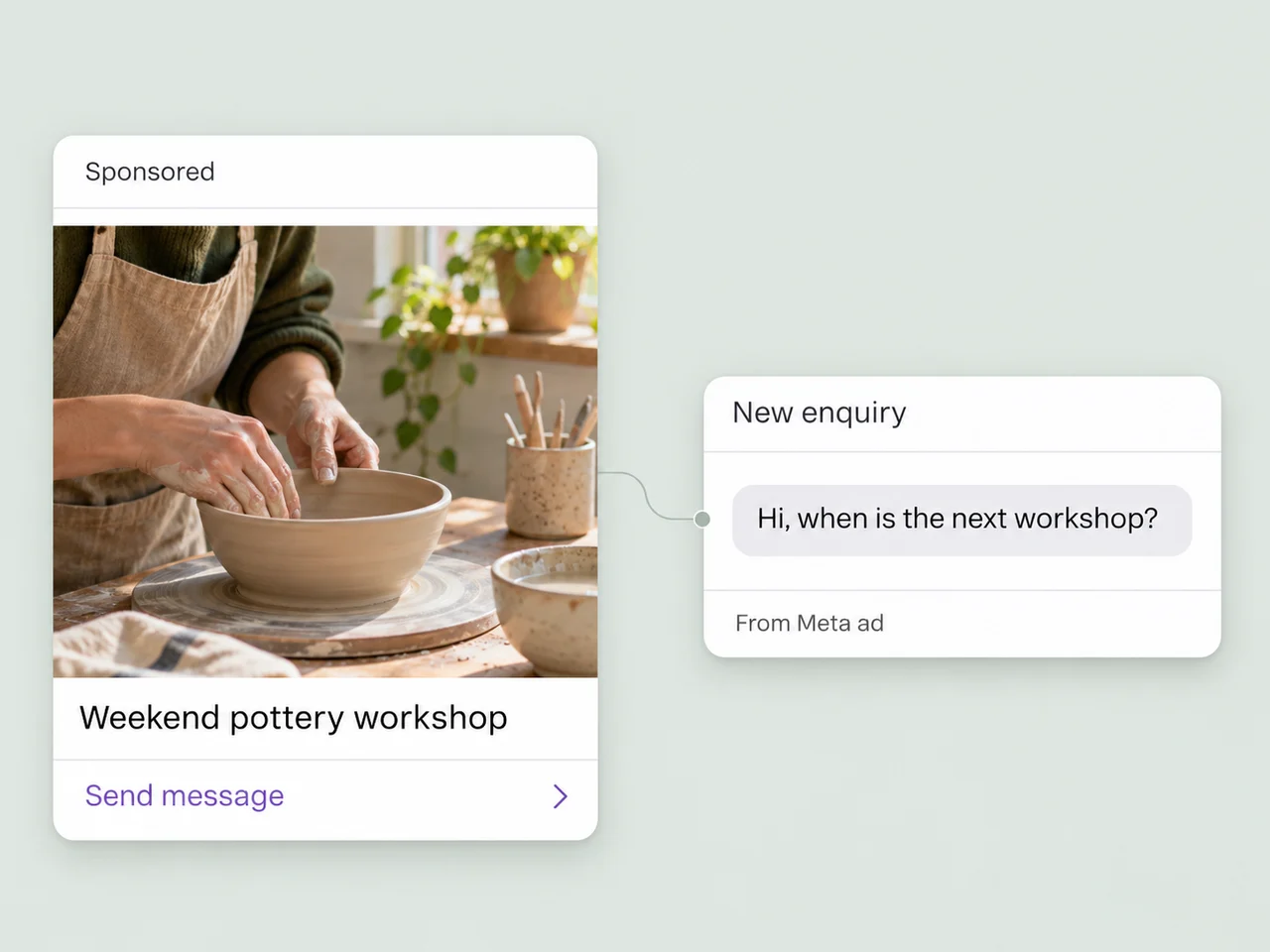
The team sees a new message, but has to piece together which ad, form, or resource brought the person in.
AxoDesk for marketing teams
Connect lead capture, targeted WhatsApp campaigns, and the replies they create. Give your marketing team a shared way to understand interest, follow up, and pass the right context to sales.
Explore the marketing workflow
Where campaign interest gets lost
A campaign creates an opening. Your team still needs a clear way to understand the enquiry, send something relevant, and help the person who replies.
The team sees a new message, but has to piece together which ad, form, or resource brought the person in.
A broad contact list makes it harder to choose an audience with a real reason to hear about your offer.
A campaign goes out, questions come back, and the next response waits while the team decides who should handle it.
A prospect reaches sales without the questions, preferences, or useful details already shared with marketing.
From interest to an ongoing conversation
Bring the source, audience, message, and next response into a workflow the whole team can understand.
01 / Bring the enquiry into view
Connect Meta lead forms and messaging ads to your lead process. Keep the submitted details and available source context with the customer record, so your first response can build on what interested them.
Give website visitors a way to ask a question through chat, a WhatsApp link, or a connected form. Collect the details your team needs and decide who should take the next step.
02 / Give each message a relevant audience
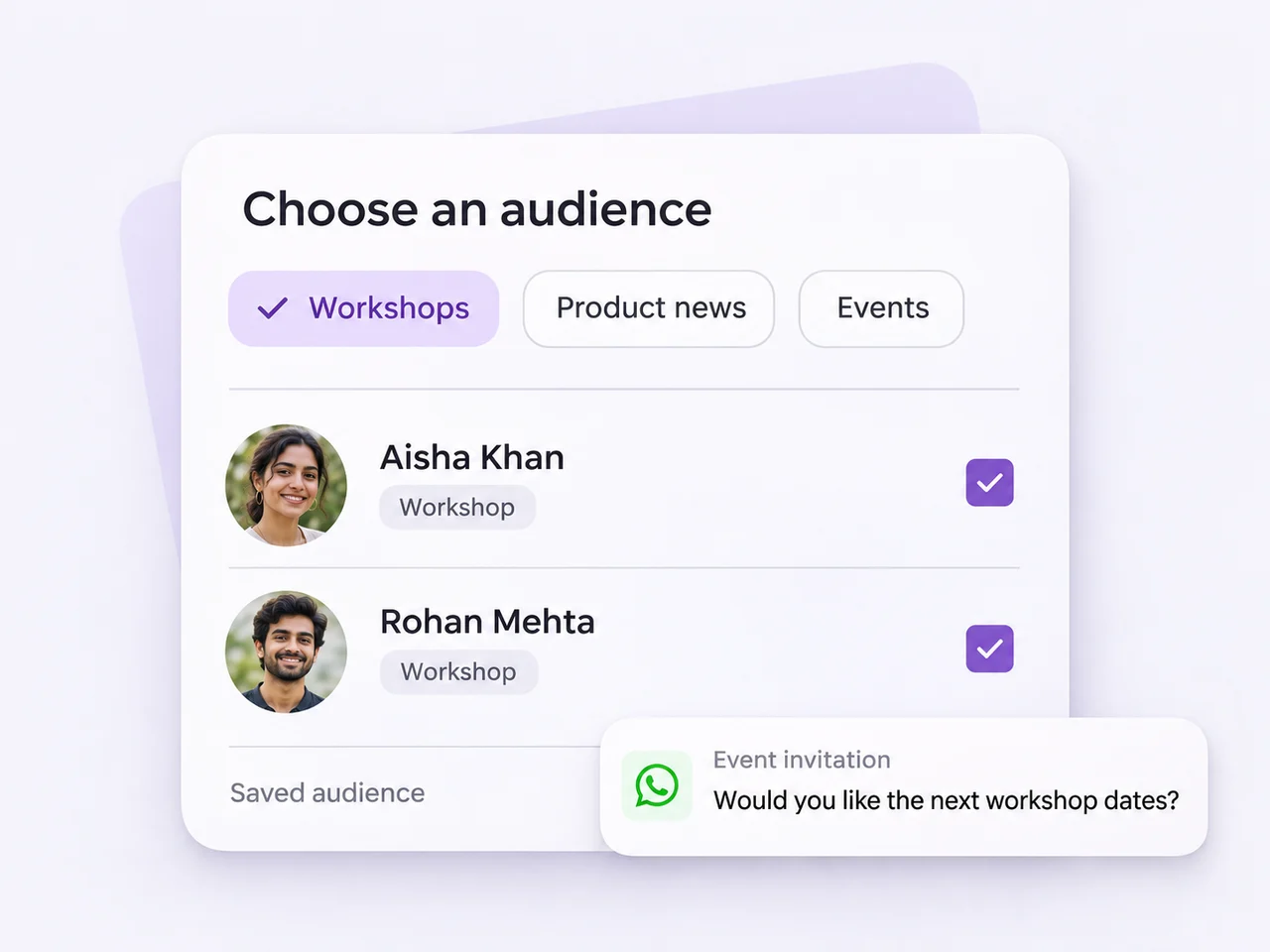
Build saved contact segments from labels, interests, and other available fields. An event invitation, service update, or renewal reminder can each reach an audience selected for that purpose.
Prepare a WhatsApp broadcast with an approved template, map its variables, and review the message before scheduling. Check audience eligibility and opt-outs each time; a saved segment is the starting point for the final recipient list.
03 / Be ready for the reply
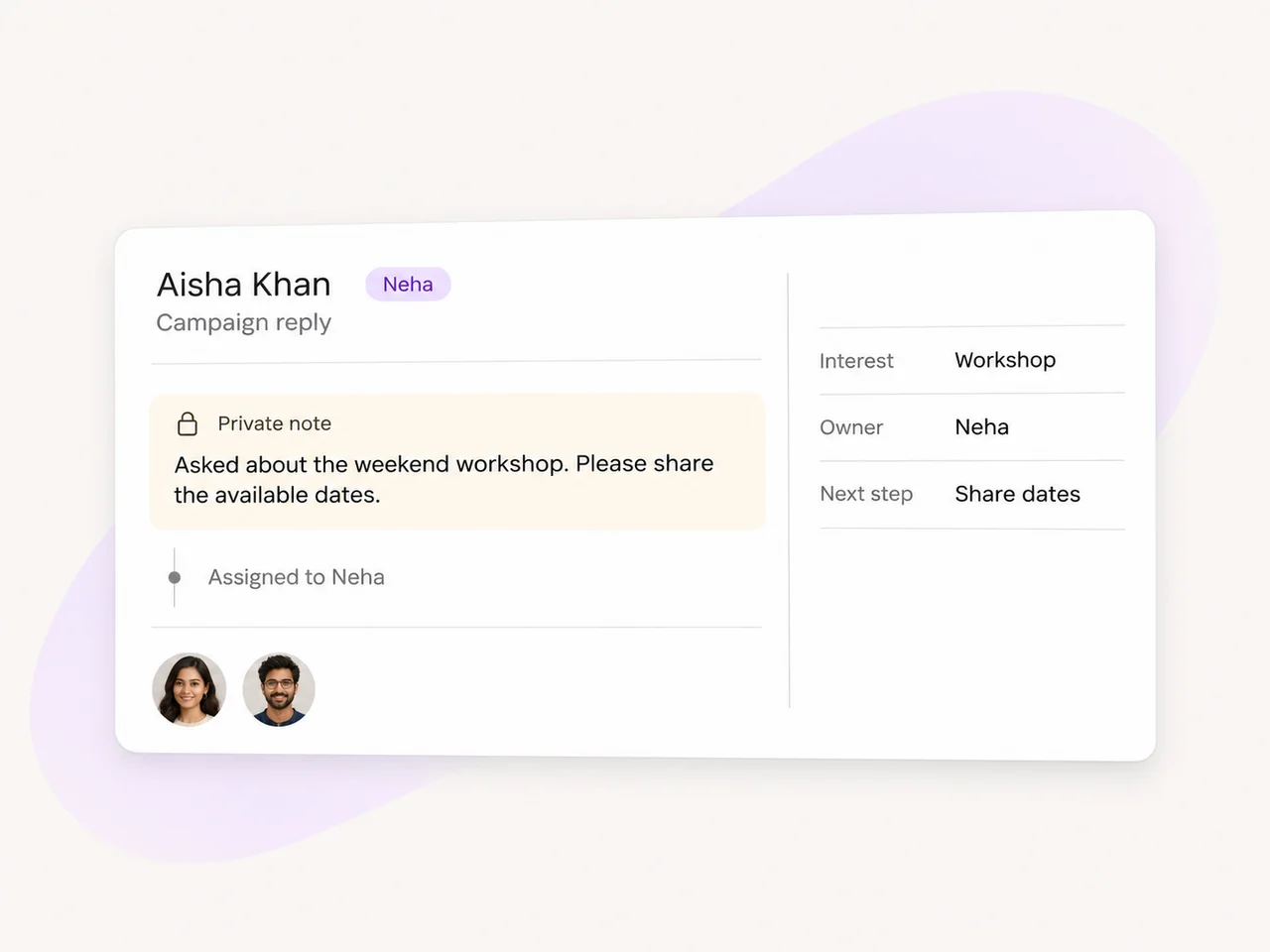
Bring replies into the shared inbox so your team can read the thread, understand the customer's question, and give the conversation an owner. A private note can carry the important details when the enquiry moves to sales.
Use an AI agent configured with your business knowledge to handle initial questions and collect relevant details. Set its boundaries and escalation conditions, so a teammate can take over when the customer needs a personal response.
Before the next campaign
Keep a simple process for choosing the audience, reviewing the message, and learning from what happens after delivery.
Keep the contact fields behind your saved segments current. Review who matches, whether the message is relevant, and which contacts are eligible to receive it.
Choose the approved WhatsApp template, check its variables, and test the rendered message. Confirm the sending number, workspace timezone, and timing before scheduling.
Use available delivery events and campaign exports to review the send. Look at the team's conversation workload separately, and use customer questions to inform the next message.
Useful tools around the campaign
Connect lead sources with the information and follow-up your team needs, keeping available source details close to the conversation.
Give visitors a clear contact option on the pages where questions arise, and bring the resulting enquiry into your team's workflow.
Save segments built from current contact information. Review the audience again before each broadcast as interests and contact details change.
Use assignments, shared history, and private notes to help teammates respond with context when customers ask about an offer or update.
Use available workflow triggers, conditions, and actions for routing and contact updates. Confirm integration scope and test the flow before activation.
Pass along what interested the prospect, what they asked, and the agreed next action, so the next person can continue the conversation.
Choose relevant fields and review who matches before saving the segment.
Select the template, map its variables, and review the schedule.
Add business knowledge, set boundaries, and test the escalation.
Broadcast campaigns currently send through a connected WhatsApp Business channel, using approved message templates. Your team can also handle conversations from other connected inbox channels, including Instagram and Facebook Messenger. The available conversation actions depend on the channel.
Use a saved contact segment built from available labels, contact fields, and custom attributes. Preview who matches, check that the message is relevant, and review audience eligibility and opt-outs before sending. Contacts in a saved segment may still be excluded from the final WhatsApp recipient list.
Yes. Connect Meta lead forms or messaging ads to the lead workflow you configure. Your website can offer chat, a WhatsApp link, or a connected form. Keep the submitted details and available source information with the contact, and test how the enquiry reaches the right teammate.
An AI agent can use your business knowledge to answer initial questions and collect relevant qualification details. Configure the channels it monitors, its boundaries, and when it should escalate to a teammate or team. Test typical questions and handoffs before enabling it.
Workflows can use available triggers, conditions, and actions for steps such as assignment, labels, messages, contact updates, waits, and webhooks. Choose the steps your workspace supports, check the channel requirements, and test the complete flow. Review the owner and next action when a personal response is needed.
Review the delivery events available for the WhatsApp broadcast and export its report when needed. Use inbox reports to look at conversation volume and team response activity. Keep delivery and conversation metrics distinct, and confirm any external conversion-event mapping before relying on it for ad reporting.
Bring the audience, message, and team response together in AxoDesk, from the first enquiry to the next useful conversation.